Coolwei Code

A coding agent that works inside one project folder at a time — reading files, editing them and running commands under a boundary you set, in a macOS application and at the command line. The whole system is hosted inside your own network.
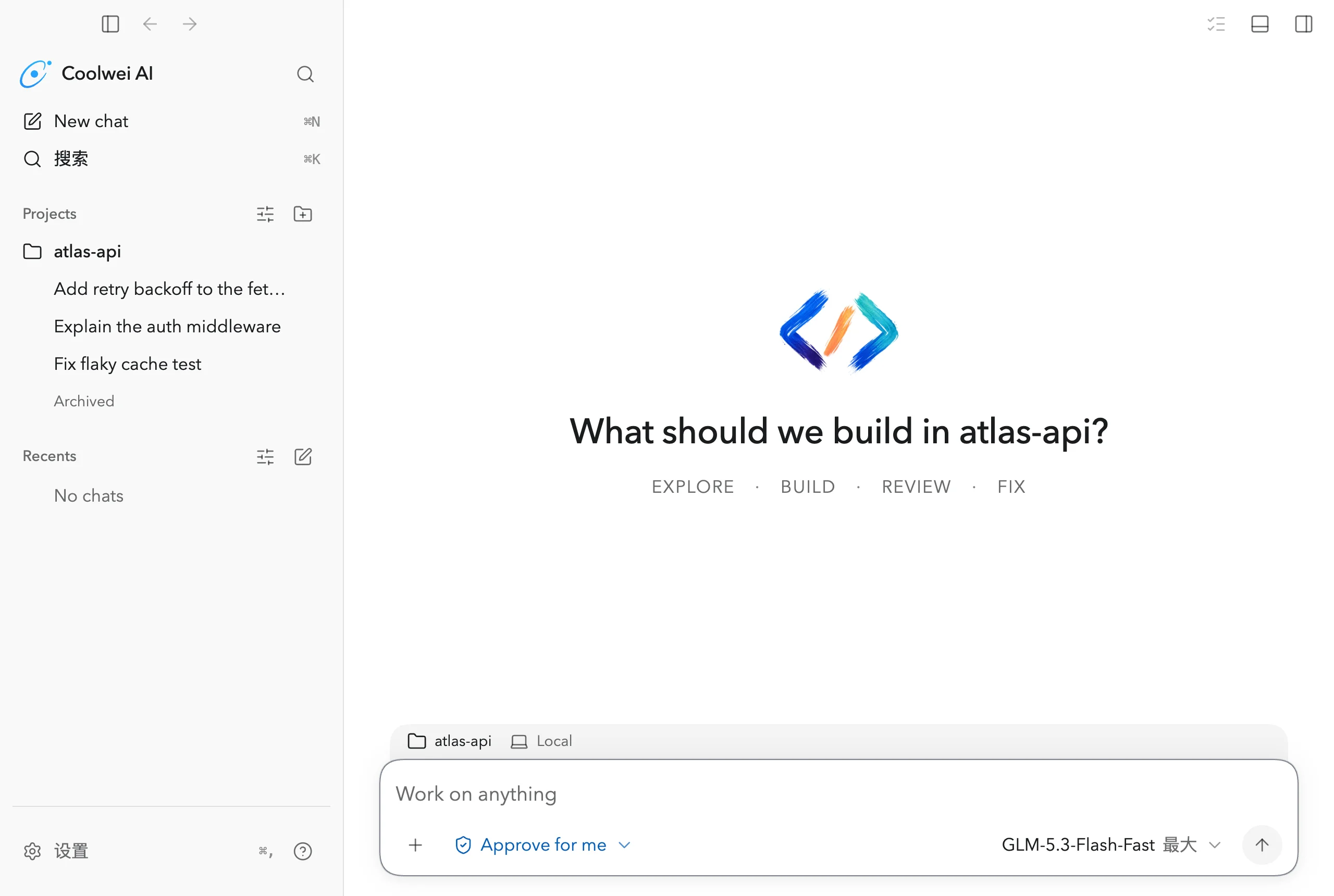
Coolwei Code is deployed inside your own environment. The application and the terminal agent talk to one endpoint — the model gateway your organisation already operates — and the models they offer are the catalogue your deployment publishes. Projects, chats, approvals, history and configuration are written to your own machines. No external connector, cloud task surface or hosted catalogue takes part.
coolwei-codeWatch the task run
A turn arrives as it is produced — the plan, the tool calls, the streamed answer — and stays readable after it settles. Nothing is summarised away.
What it does
Folder-scoped chats
Every chat belongs to a project folder you add to the sidebar, and the agent reads, edits and runs commands inside it.
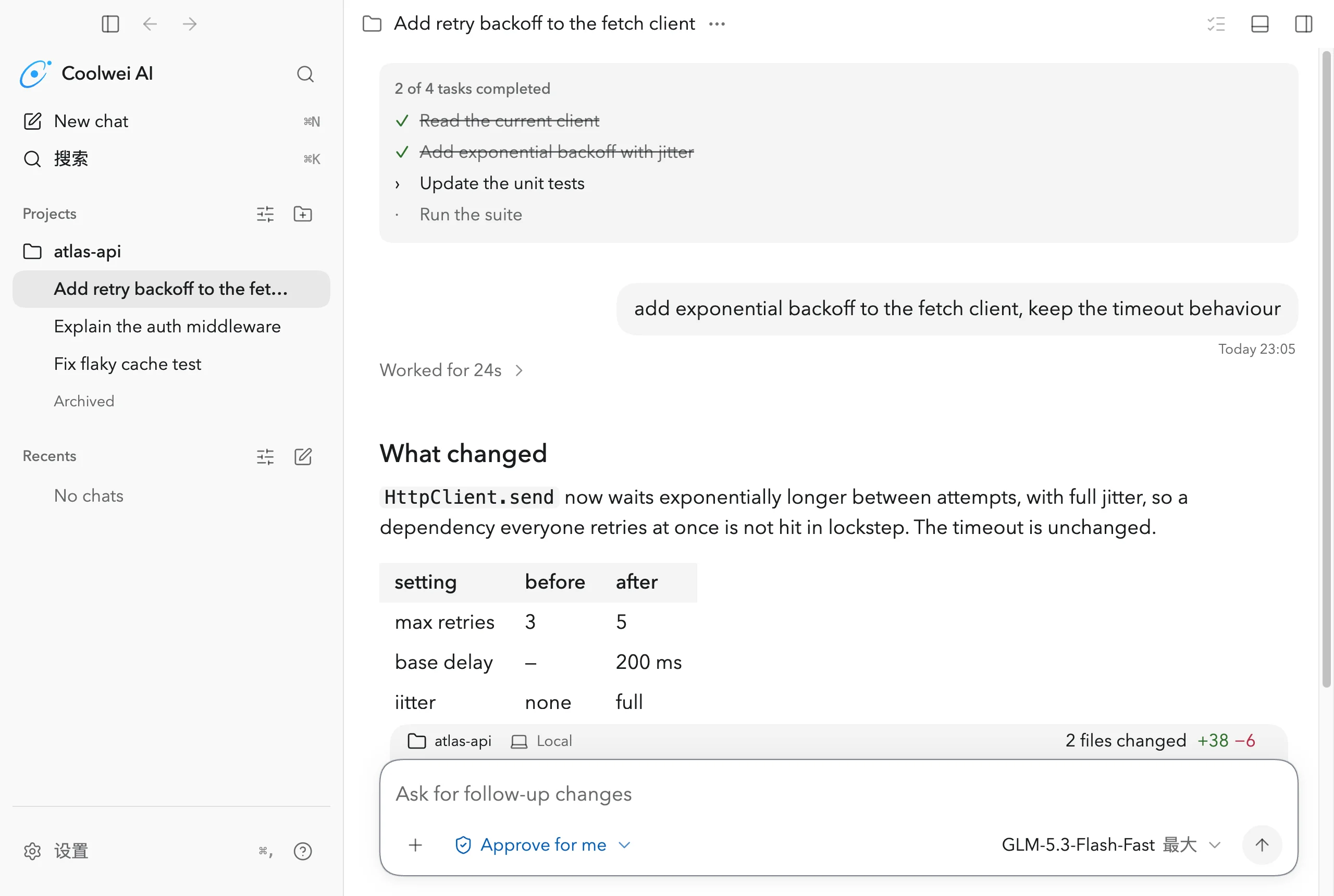
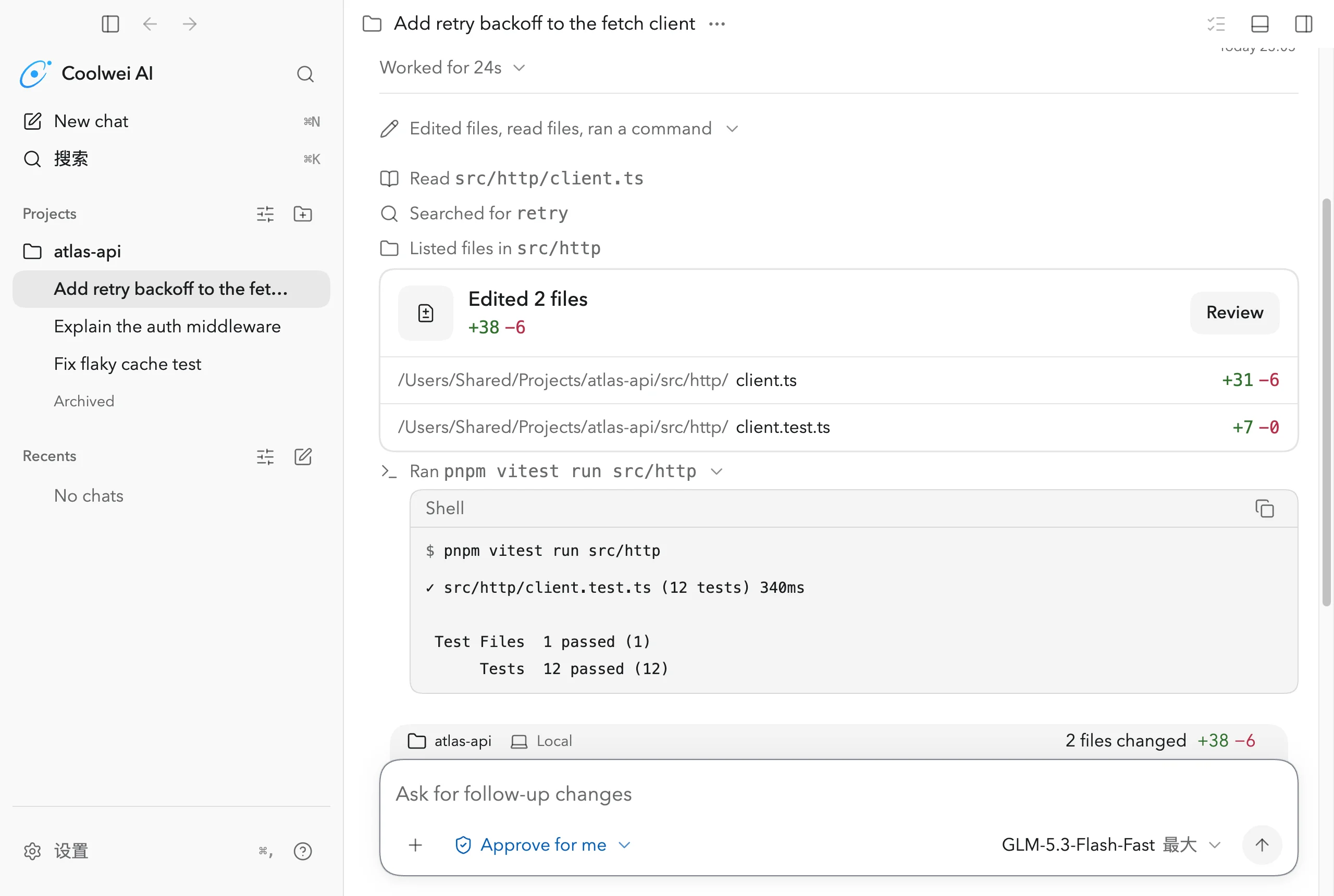
The work in view
Tool-call rows, the plan and the streamed answer arrive as they are produced, then collapse into a group the turn keeps.
Approvals at the boundary
A command or a file write that would leave the sandbox stops the turn on a card carrying the request exactly as the agent sent it.
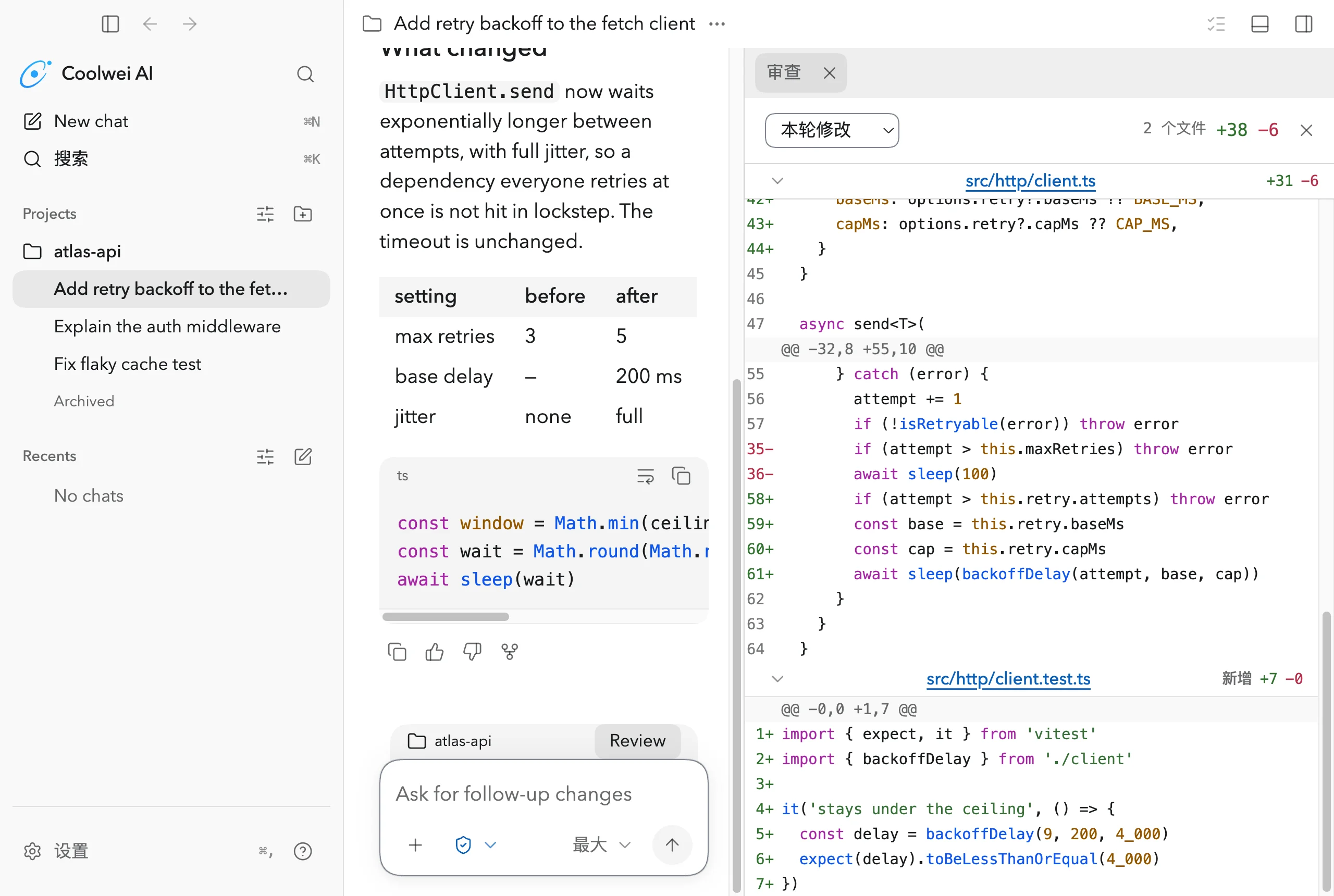
Review, read-only
The diff for the last turn or the whole working tree — unified, syntax highlighted, collapsible file by file, and never staged or committed for you.
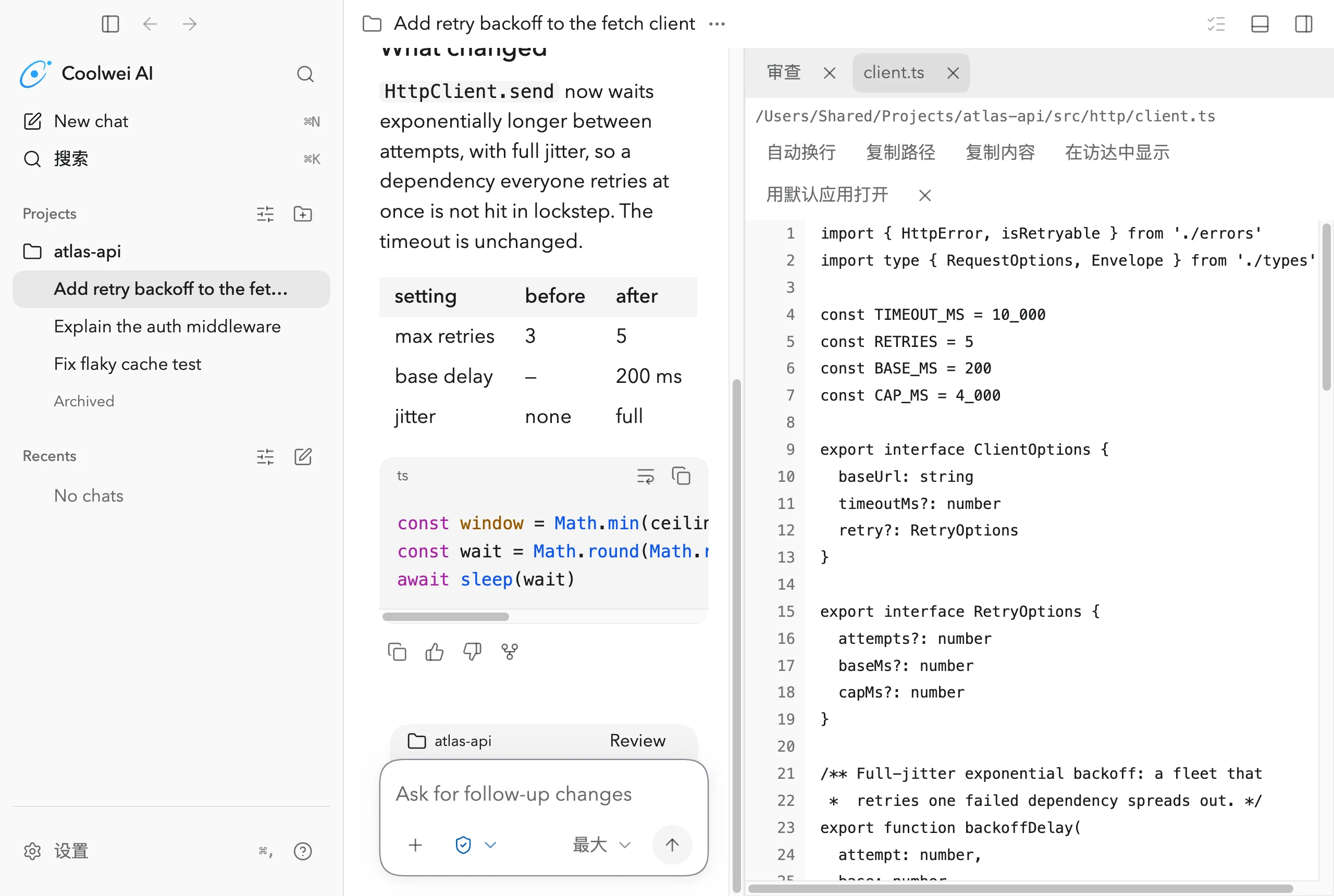
Open the file the answer names
Files open as tabs beside Review, so a claim in the transcript can be checked against the source without leaving the chat.
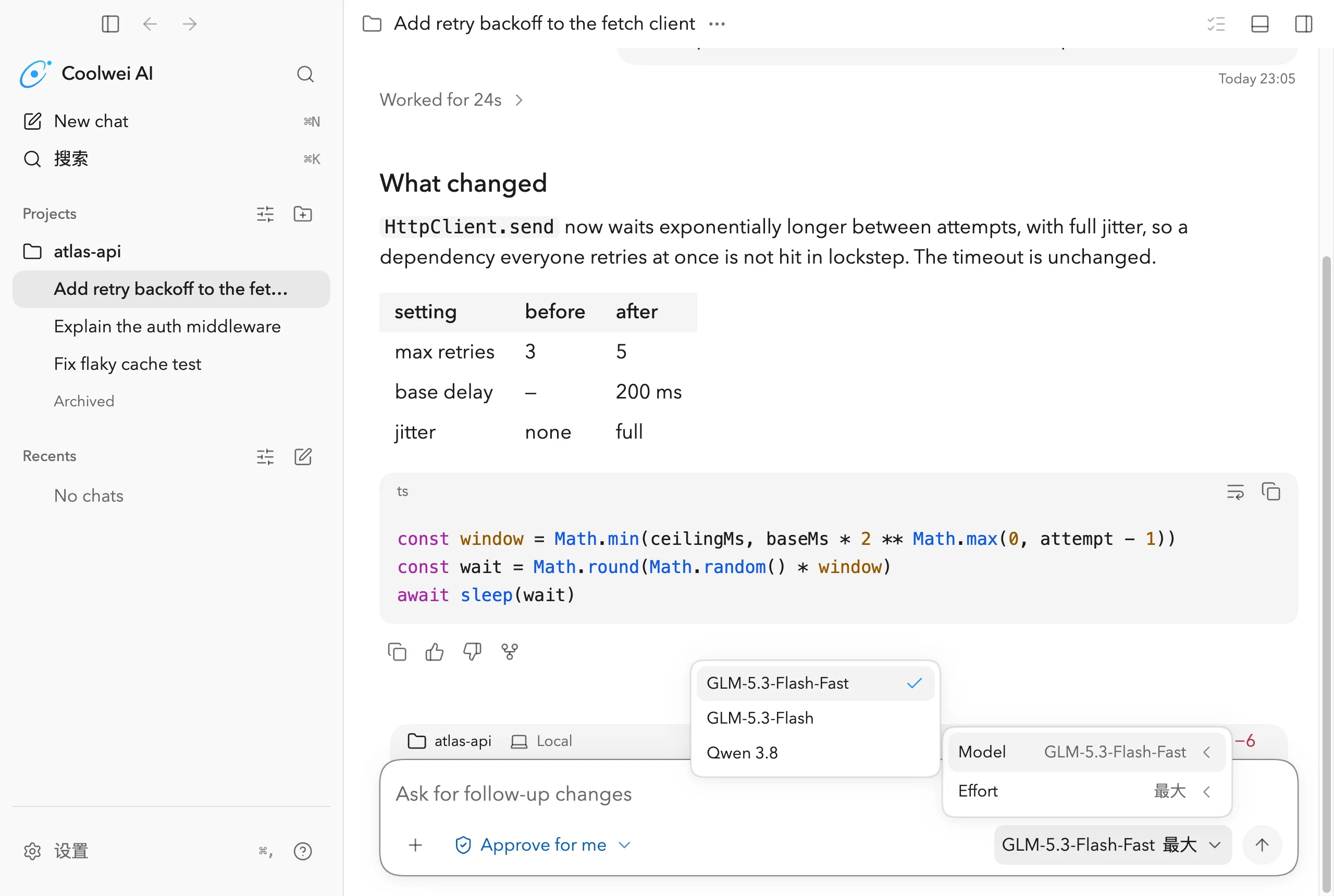
Model and reasoning picker
A picker over the catalogue your deployment publishes, with the reasoning row shown for the models that offer one.
Resume in the terminal
coolwei-code picks up the same chats in the terminal that the application left open, in the same project folder.
Fully hostable inside your network
Both entry points are self-hosted deployments. Model traffic goes through your own gateway, the catalogue on offer is the one you publish, and everything the agent writes down stays on your machines.
One endpoint, and it is yours
Model traffic follows the gateway configuration your deployment provides. There is no second destination to review.
Your catalogue, your names
The models and reasoning levels on offer come from the catalogue you publish, so the list matches what your platform team has approved.
Work stays on your machines
Projects, chats, approval history, transcripts and configuration are written locally, under a configuration home you control.
Nothing hosted in the loop
External connectors, cloud task surfaces and hosted catalogues are off in this build, and it does not call out for updates or announcements.
Three permission modes, one workspace boundary
The permission control sits in the composer and applies to the chat you are in. Two of the three modes share the same sandbox and differ only in who answers the approvals; the third widens it, and only after a confirmation that says so in as many words.
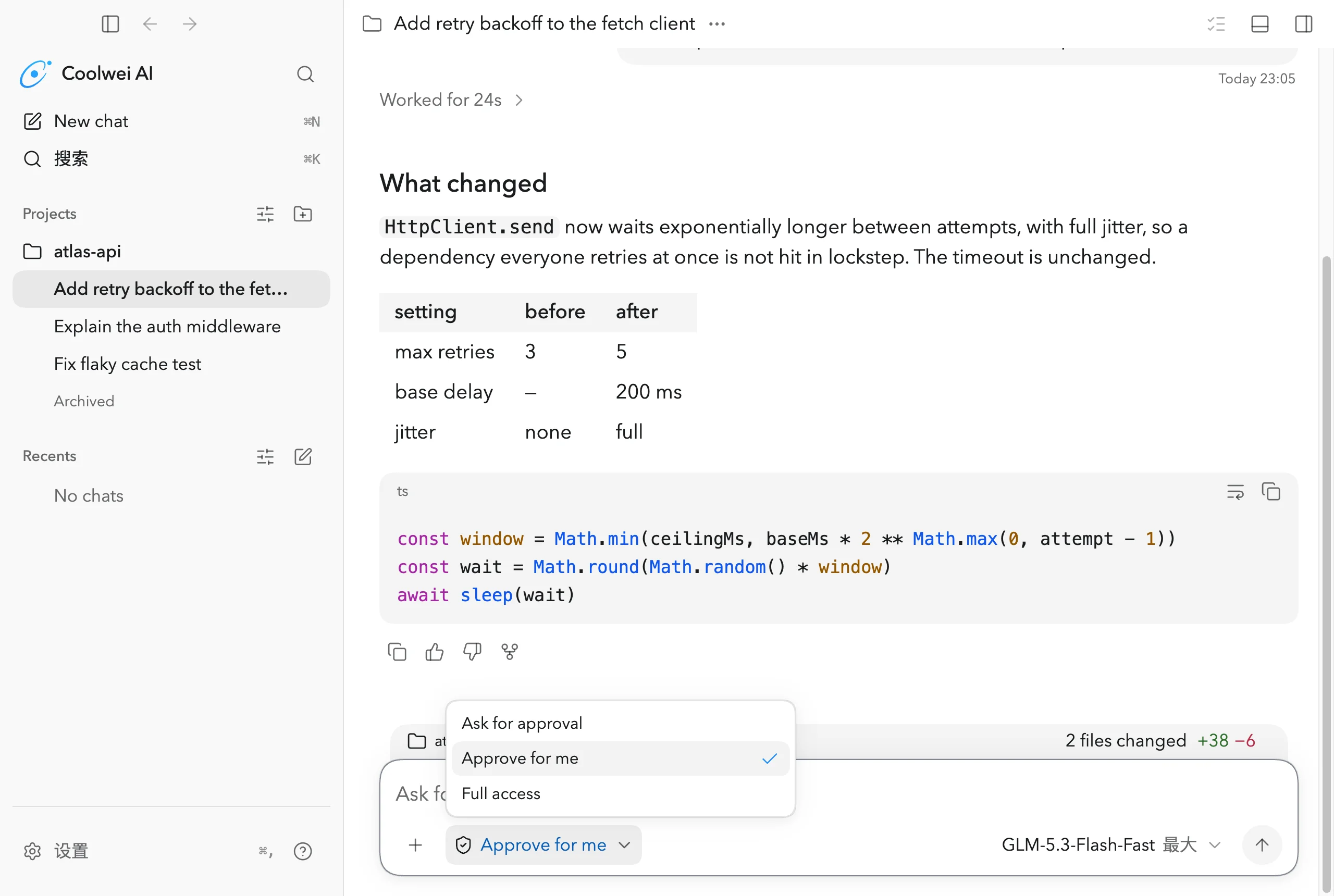
Ask for approval
Reads and edits inside the workspace. Asks before using the internet or going beyond the workspace boundary.
Approve for me
A reviewer agent decides the approvals at the same workspace boundary. Only who answers changes — the sandbox does not widen.
Full access
Edits files outside the workspace and reaches the internet without asking. Gated behind a confirmation and scoped to a single chat.
Light and dark, the same build
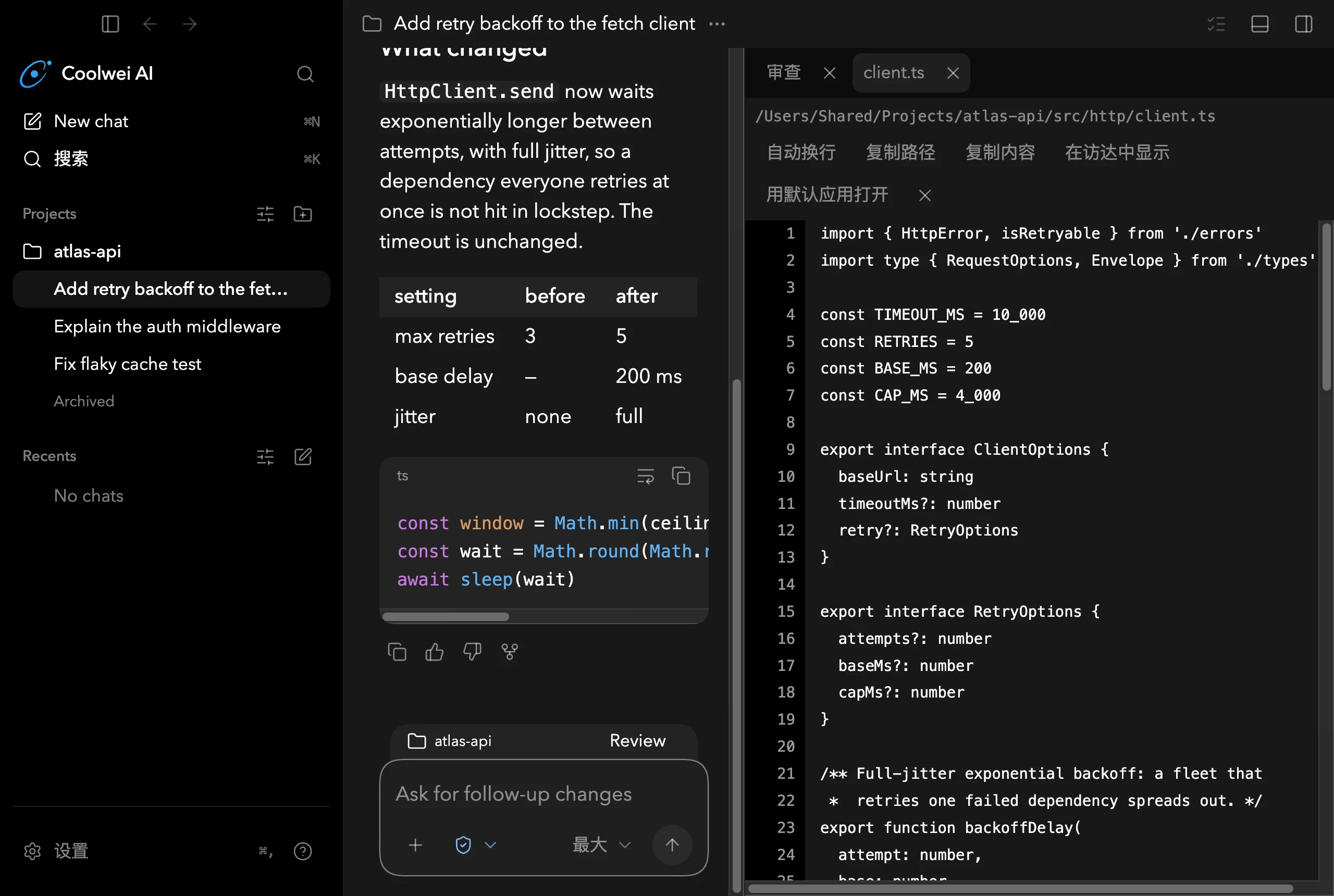
Both themes ship together and follow the system setting or an explicit choice. Every surface — transcript, Review, the file viewer, the pickers — is drawn in both.
Coolwei Code is open for trials
Engineering, platform and security teams: contact the lab for a demonstration and a deployment plan for your own network.
Contact for trial →